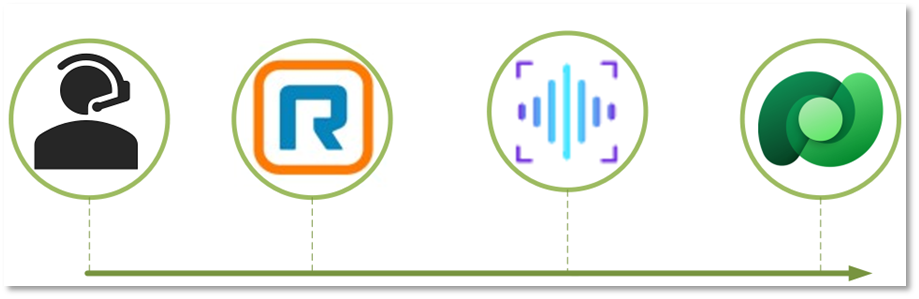
If there are thousands of calls being made a day with write ups being required after each one, every second saved can save days of time. That’s the problem I set out to solve: getting call transcripts out of RingCentral and into the hands of users automatically, without anyone having to go looking for them.
Want to jump to the step by step guide?
The Problem
Once a call ends, the recording sits in RingCentral to only be looked at if someone goes looking. The call details are in one system, the customer record is in another, and nothing connects them automatically, making finding calls time consuming.
Why It Mattered
The question that makes this painfully obvious is a simple one: “What was it that they said on that last call?”
To answer it, you log into RingCentral, find the call log, filter to the right extension and date, download the file, and start listening. Fifteen minutes later you have your answer. Multiply that by every time someone asks that question, and you start to see the problem.
The goal was simple: get the transcript onto the record automatically, so the next time someone finishes the phone call they already have the context they need.
What I Considered
Upgrading the telephony system is the obvious answer on paper. RingCentral does have built-in transcription features. But that means additional licence costs per user, a proper change management project, and where is the fun in that? Also cost, did I say that?
Storage was a real constraint. I couldn’t just download audio files and store them in Dataverse - that trades one problem for another. The solution was Azure Blob Storage as a temporary buffer: upload the file, transcribe it, delete it. The audio never persists beyond the few minutes it takes to process.
Azure AI Speech vs OpenAI Whisper - I went with Azure for convenience more than anything else. It was already in my subscription and I had some familiarity with it. Whisper or similar might well produce better results in some cases and is worth considering as an alternative.
Real-time vs batch transcription - I did start with the real-time API, hoping for faster results. It turned out to be better suited to live audio streams rather than large recorded files. Which left me with batch transcription, which is still pretty quick.
What was built
The trigger works the same way as the one I used in my one-click email templates post - a command button on a Dynamics form, a piece of JavaScript that creates a record in a custom table, and a Power Automate flow watching that table for new records.

From there, the flow looks up the agent’s RingCentral extension using their email address via the SCIM API, pulls their most recent recorded call from the Call Log API, downloads the audio, and uploads it temporarily to Azure Blob Storage. It generates a time-limited SAS URL for secure access, submits the audio to Azure AI Speech for transcription, polls until the job completes, then writes the transcript back to the Dataverse record and deletes the audio file. The whole thing takes about 90 seconds from button press to transcript.
Did you get all that? Basically, it grabs their call and pushes it through transcription and stores it back in dataverse.
The Result
Press a button on a Dynamics record, and within 90 seconds a full transcript of the agent’s most recent call appears - attached to that record. No RingCentral login required. No listening back required. Plenty of time saved.
Where This Could Go Next
A few things I’d change, and a few directions this could go from here:
Error handling needs attention before this goes anywhere near volume. Currently, if one call fails to transcribe, the flow surfaces an error rather than skipping gracefully.
The polling loop works fine for a button-triggered flow processing one call at a time. Azure AI Speech does support a webhook callback pattern that would eliminate it entirely. Worth considering if this ever needs to process calls at volume.
Better visualisation. Currently it is just a record association, but ideall this would be visible easily at the click of a button, sidebar or similar.
Seperation of speakers. Currently our recordings are mono, but if we can get these in studio format I may be able to distinguish who is talking at what time.
Automatic first draft of call notes. I’d eventually like to pass the transcript through an LLM and ask it to summarise the call in a specific format. That would provide a draft for the agent rather than writing from scratch. That’s the real time saving.
Automatic trigger on call completion. Currently this is button triggered. Ideally it would fire automatically the moment a call ends. That needs a tighter integration between RingCentral and Power Platform - a webhook on call completion rather than a manual step.
Below is a guide if you want to give this a go yourself
Technical Guide
Prerequisites
- RingCentral RingEX (Advanced or above for recording API access)
- Azure subscription with Azure AI Speech resource and Azure Blob Storage account
- Power Platform environment with Dataverse
- Power Automate Premium (HTTP connector requires premium)
RingCentral App Setup
Create an app in the RingCentral Developer Portal (developers.ringcentral.com).
Permissions required:
- ReadCallLog
- ReadCallRecording
- ReadAccounts
Auth type: JWT (server-to-server, no user login required)
Generate a JWT token from the developer portal. You will use this alongside your Client ID and Client Secret to obtain a Bearer token for API calls.
Token exchange request:
POST https://platform.ringcentral.com/restapi/oauth/token

Auth: Basic (Client ID as username, Client Secret as password)

Body (x-www-form-urlencoded):
grant_type=urn%3Aietf%3Aparams%3Aoauth%3Agrant-type%3Ajwt-bearer
assertion=YOUR_JWT_TOKEN
Returns an access_token valid for one hour. Use this as a Bearer token on all subsequent API calls.
Azure Setup
Azure AI Speech: Create a Speech Services resource in the Azure Portal. Note your Key 1 and endpoint URL (e.g. https://ukwest.api.cognitive.microsoft.com/).
Azure Blob Storage: Create a Storage Account and a container called audio-temp. Set access to Private. Note your storage account name and Access Key.
Store all four values as environment variables in your Power Platform solution before building the flow.
Dataverse Table
Create a table called Call Transcripts with the following columns:
| Column | Type |
|---|---|
| Call ID | Single line of text (primary column) |
| Call Date | Date and Time |
| Caller Name | Single line of text |
| Caller Extension | Single line of text |
| Caller Email | Single line of text |
| Customer Number | Single line of text |
| Direction | Single line of text |
| Duration Seconds | Whole Number |
| Transcript | Multiple lines of text (plain text) |
| Processed | Yes/No (default: No) |
Power Automate Flow
Trigger: When a row is added in the Call Transcripts table (Dataverse)
Structure: Three scopes - Authenticate, Get Call, Process
Authenticate scope
HTTP POST to RingCentral token endpoint using Basic auth (Client ID / Client Secret) with JWT assertion in the body. Parse the response and store access_token in a string variable called AccessToken.
Get Call scope
1. Look up extension by email (SCIM)
GET https://platform.ringcentral.com/scim/v2/Users
Header: Authorization: Bearer {AccessToken}
Query: filter = email eq "trigger email value"
Parse the response. Extension ID is at Resources[0].id.
2. Build call log URL
concat(
  'https://platform.ringcentral.com/restapi/v1.0/account/~/extension/',
  body('Parse_SCIM_Response')?['Resources'][0]?['id'],
  '/call-log?recordingType=Automatic&perPage=1'
)
3. Get call log
GET {call log URL}
Header: Authorization: Bearer {AccessToken}
Parse the response. Key fields:
records[0].id- call IDrecords[0].startTime- call daterecords[0].from.name- caller namerecords[0].from.extensionId- extensionrecords[0].from.phoneNumber- caller numberrecords[0].to.phoneNumber- customer numberrecords[0].direction- Inbound/Outboundrecords[0].duration- secondsrecords[0].recording.contentUri- audio download URL
4. Download audio
GET {contentUri}
Header: Authorization: Bearer {AccessToken}
Returns binary MP3 content.
Process scope
5. Upload to Azure Blob Storage
Use the Azure Blob Storage connector action “Create blob (V2)”.
- Container:
/audio-temp - Blob name:
{call id}.mp3 - Content: body of download audio action
6. Generate SAS URL
Use Azure Blob Storage connector action “Create SAS URI by path (V2)”.
- Path:
/audio-temp/{call id}.mp3 - Permissions: Read
- Expiry:
addMinutes(utcNow(), 30)
7. Submit transcription job
POST https://ukwest.api.cognitive.microsoft.com/speechtotext/transcriptions:submit?api-version=2024-11-15
Header: Ocp-Apim-Subscription-Key: {azure speech key}
Header: Content-Type: application/json

Body:
{
  "contentUrls": ["{SAS URL}"],
  "locale": "en-GB",
  "displayName": "{call id}",
  "properties": {
    "wordLevelTimestampsEnabled": false,
    "punctuationMode": "DictatedAndAutomatic",
    "profanityFilterMode": "None",
    "timeToLiveHours": 6
  }
}
Parse the response. Note the links.files URL - you will need this to retrieve the transcript.
8. Poll for completion (Do Until)
Initialise a string variable TranscriptionStatus set to NotStarted before the loop.
Inside the Do Until (exit condition: TranscriptionStatus equals Succeeded):
GET {self URL from transcription job response}
Header: Ocp-Apim-Subscription-Key: {azure speech key}
Parse the status response and set TranscriptionStatus to the status field. Add a 15 second Delay action. Set loop limit to 10 iterations, timeout PT5M.
9. Get transcript files
GET {links.files URL from status response}
Header: Ocp-Apim-Subscription-Key: {azure speech key}
Filter the returned array to kind == 'Transcription'. Extract the contentUrl from the filtered result:
body('Filter_To_Transcription')[0]?['links']?['contentUrl']
10. Get transcript content
GET {contentUrl}
No auth header required - this is a pre-signed Azure Storage URL.
Extract the transcript text:
body('Get_Transcript_Content')?['combinedRecognizedPhrases'][0]?['display']
11. Delete the blob
Azure Blob Storage connector - Delete blob action. Path: /audio-temp/{call id}.mp3
Set Run After to execute on both success and failure of the transcript step, so the blob is always cleaned up.
12. Update Dataverse record
Use the Dataverse connector - Update a row action. Update the record that triggered the flow with all call metadata and the transcript text. Set Processed to Yes.
Until next time!